
Owner Explainer: Model Y Touchscreen Restart vs. Vehicle Power Cycle
Owner Explainer · Current Tesla Primary Documentation
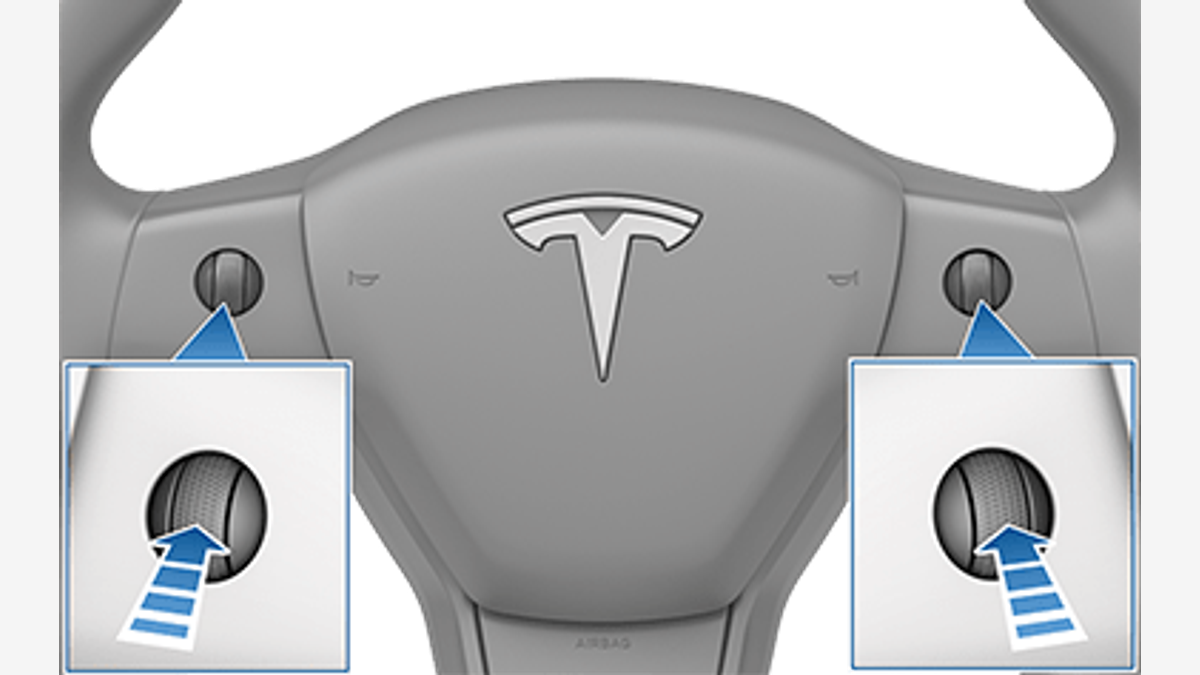
For an unresponsive or unusual Model Y display, Tesla says to try a touchscreen restart first: stop, shift into Park, and hold both scroll buttons. A Model Y vehicle power cycle is a separate step under Controls > Safety > Power Off and requires an uninterrupted two-minute wait. Neither procedure should be treated as a repair for a recurring safety warning or hardware fault.
30-Second Brief
- This Owner Explainer is dated September 10, 2026 in America/Los_Angeles. It summarizes current Tesla DIY documentation and is not presented as a new feature announcement.
- Tesla says to restart the touchscreen only while the vehicle is stopped and in Park because key driving information is temporarily unavailable.
- Holding both steering-wheel scroll buttons restarts only the touchscreen; it does not restart other vehicle components or power the vehicle off and on.
- If unusual behavior remains after the touchscreen comes back, Tesla documents a separate vehicle power cycle with at least two minutes of no interaction.
- A reboot is a troubleshooting step, not evidence that a persistent warning or physical fault has been fixed.
What Happened
Tesla’s current Model Y DIY guides distinguish two owner troubleshooting procedures that are often described loosely as a “reboot.” The first restarts the touchscreen. The second powers the vehicle down through the Safety menu and requires a quiet two-minute interval before the car is awakened again.
This article enters Tesstudio’s mandatory fallback ladder after seven complete no-publication hours with zero Tesla News posts on the new Los Angeles day. Same-window candidates were duplicate, future-only, narrow tracker movement or failed a primary-evidence gate, so the workflow expanded to a current owner topic without weakening source requirements.
What Is Confirmed
- Park is required: Tesla warns that car status, safety warnings and the backup camera are not visible during a touchscreen restart.
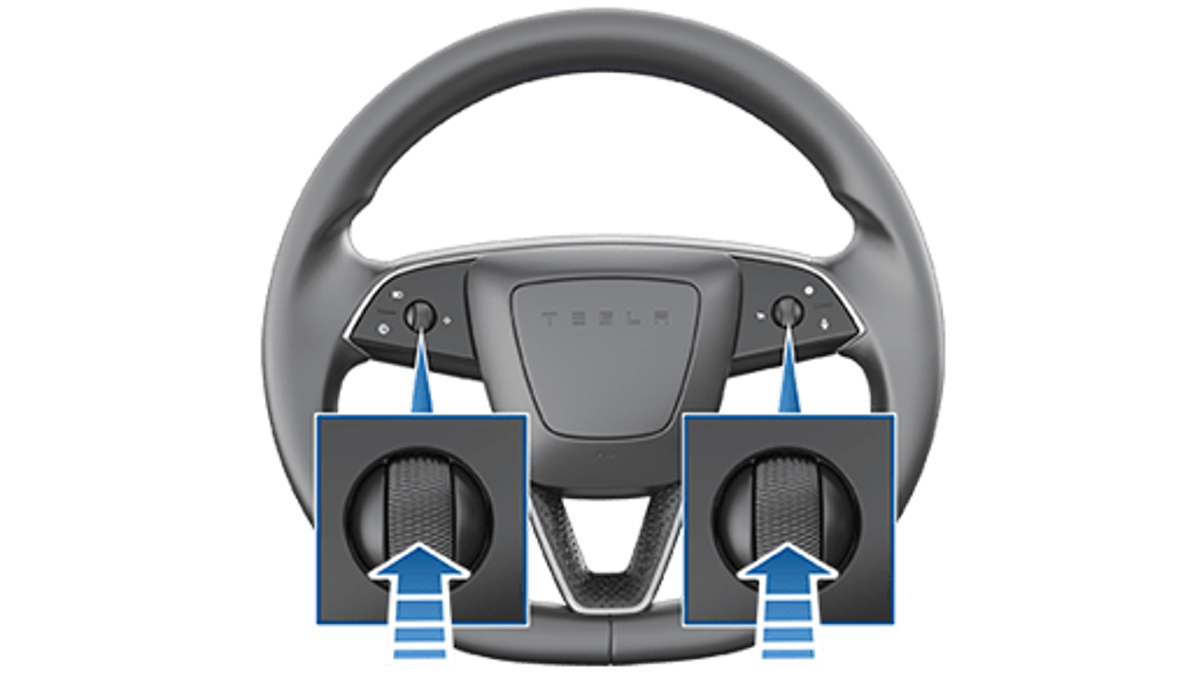
- Both scroll buttons: hold the left and right steering-wheel scroll buttons until the touchscreen turns black.
- Brake pedal is unnecessary: Tesla says pressing the brake while holding the buttons has no effect and is not required.
- About 30 seconds: Tesla says to wait approximately 30 seconds for the touchscreen to restart.
- Limited scope: the scroll-button procedure restarts the touchscreen only; it does not power the vehicle off and on.
- Escalation step: if the display remains unresponsive or behavior remains unusual after a few minutes, Tesla says to try a vehicle power cycle if possible.
- Two-minute interval: after Controls > Safety > Power Off, do not open doors, touch the brake pedal or interact with the touchscreen for at least two minutes. Then press the brake or open a door to wake the car.
What Remains Unconfirmed
Tesla’s instructions do not say that either restart repairs failed hardware, clears every alert or makes a vehicle safe to drive after a serious warning. They also do not say that repeating the procedure is a substitute for diagnosis when the same problem returns.
Exact steering-wheel appearance, menus and behavior can vary by model, build date, software and market. Owners should use the live in-car manual or the model-specific Tesla guide for their exact vehicle.
Why It Matters
The touchscreen carries speed, gear state, safety alerts, camera views and many controls. Restarting it while driving would temporarily remove information a driver needs. Tesla therefore makes the stopped-and-in-Park boundary explicit.
The distinction also prevents wasted troubleshooting. A screen restart is the faster first step when the display itself is unresponsive. A vehicle power cycle is broader and only works as documented if the two-minute no-interaction period is respected.
What Tesla Owners Should Know
- Pull over safely. Stop fully and shift into Park before attempting any restart.
- Photograph a recurring alert first. Preserve the exact message and time before the screen goes black, when safe to do so.
- Try the touchscreen restart once. Hold both scroll buttons and wait for the Tesla logo and normal display to return.
- Check whether the symptom remains. Confirm the car status display, cameras and affected controls are operating normally before driving.
- Use the power cycle only if appropriate. Select Controls > Safety > Power Off and leave the vehicle untouched for the full two minutes.
- Do not normalize repeat failures. If a safety warning, blank display or unusual behavior returns, use Tesla service or roadside support as appropriate.
- Follow the exact model guide. Build-date and model differences can change illustrations or adjacent instructions.
Tesstudio Analysis
The most useful mental model is “display first, vehicle second.” The scroll-button restart is narrowly aimed at the touchscreen. The power-cycle procedure is the next documented step when unusual behavior persists. Keeping those scopes separate avoids implying that a visual restart resets every system.
A successful reboot is not proof of root-cause resolution. The safe endpoint is not merely that the screen turned back on; it is that the relevant status, warnings and controls are normal and any persistent fault receives the appropriate service response.
Related Tesla News Resources
For account access problems, see Tesstudio’s Tesla account security explainer. For vehicle-service preparation, see the service appointment guide. No Related Gear module is included because the cited documentation does not establish an accessory need.
Sources & Reporting Notes
- Tesla Model Y DIY: Restarting the Touchscreen — primary source for the Park-only warning, scroll-button procedure, approximate restart time and touchscreen-only scope.
- Tesla Model Y DIY: Power Cycling the Vehicle — primary source for the Safety-menu path and uninterrupted two-minute wait.
Reporting note: Both Tesla HTML pages and both Tesla-supplied illustrations were downloaded and checked before publication. The images are official procedural drawings fitted to 1200-by-675 canvases without altering their instructional content. Tesstudio does not claim that restarting fixes an underlying fault.
Update & Correction Log
September 10, 2026: Initial Owner Explainer, published in mandatory fallback mode after seven complete no-publication hours and with zero Tesla News posts on the America/Los_Angeles day.


댓글 남기기
이 사이트는 hCaptcha에 의해 보호되며, hCaptcha의 개인 정보 보호 정책 과 서비스 약관 이 적용됩니다.