
Owner Brief: How to Report Tesla Supercharger and Destination Charging Problems
Owner Brief · Current Tesla Support Guidance
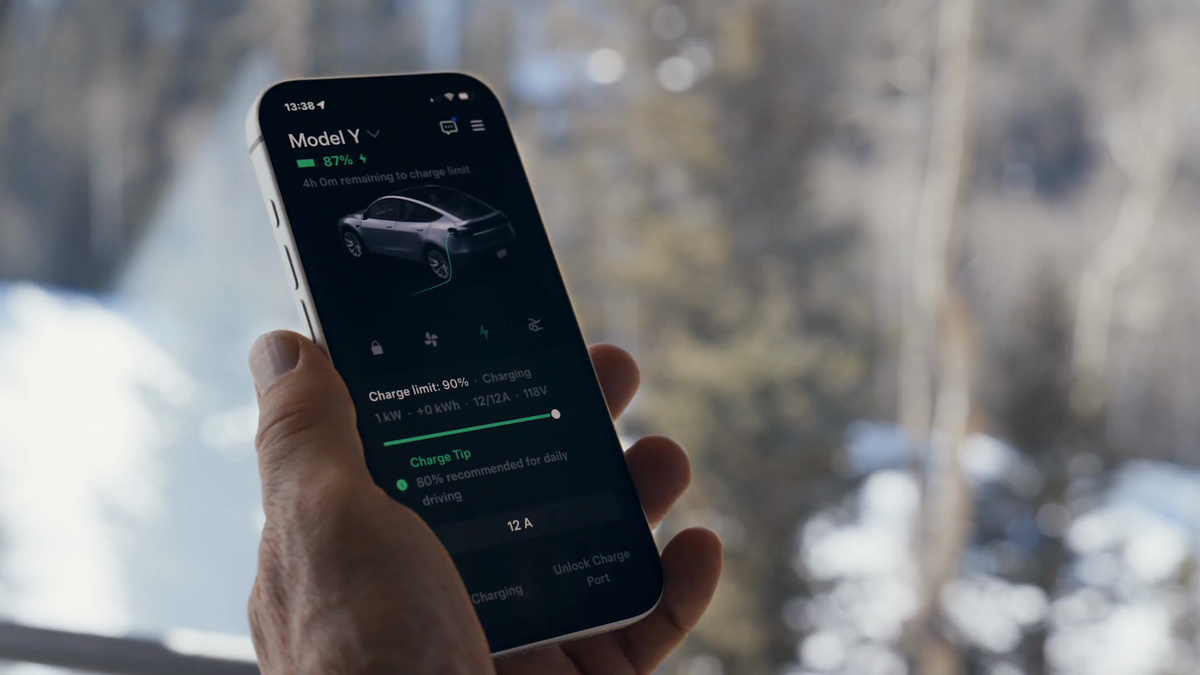
To report a Tesla charging issue, Tesla says to open the app, select the charging location, choose Report an Issue, select a category and add a photo. The workflow requires Tesla app 4.39.0 or later. It is intended for site conditions such as access, cleanliness or damaged equipment—not for emergencies, and it does not guarantee a repair time.
30-Second Brief
- This Owner Brief is dated October 19, 2026 and summarizes current Tesla support guidance; it does not claim a new reporting feature launched today.
- Tesla's documented path is: open the Tesla app, select a charging location, choose Report an Issue, select a category and include a photo.
- The reporting workflow requires Tesla app version 4.39.0 or later.
- Tesla says its systems can detect some charging-performance problems, while owner reports help with onsite access, cleanliness or damage.
- A charging survey is separate from an issue report: the survey measures satisfaction, while Report an Issue flags a site problem for review.
What Happened
Tesla's current Charging support page gives owners a defined app workflow for reporting problems at Supercharger and Destination Charging locations. The page separates automated detection of charging-performance problems from site conditions that may need an owner to flag them.
This is a policy-required fallback Owner Brief published after more than five hours without a new Tesla News article while the America/Los_Angeles daily count remained below four. It is an evidence-based service guide, not a same-window product announcement.
What Is Confirmed
- Where to start: Tesla says to open the Tesla app and select the affected charging location.
- Report path: choose Report an Issue, select the relevant category and include a photo.
- Version requirement: Tesla says the workflow requires app version 4.39.0 or later.
- Issue types: Tesla identifies access, cleanliness and damaged charging equipment as examples that owner reports can help investigate.
- Automated monitoring: Tesla says its systems can detect some conditions that affect charging performance.
- Separate feedback: Tesla also provides charging surveys for satisfaction ratings and written feedback.
What Remains Unconfirmed
Tesla's support page does not promise that every report produces an immediate repair, a personal reply, a refund or a specific resolution time. It also does not establish that a submitted photo proves who caused damage or whether a stall is safe to use.
This workflow should not be treated as an emergency or roadside-assistance channel. If there is fire, exposed electrical equipment, smoke, collision damage, a medical emergency or an immediate hazard, keep clear and use the appropriate emergency and site-safety contacts.
Why It Matters
A charging session can fail because of vehicle, connector, stall, payment, access or site conditions. A location-specific report with the correct category and a useful photo gives Tesla more actionable information than a general complaint without a site reference.
Separating issue reports from satisfaction surveys also matters. A low rating records the experience, while the Report an Issue workflow is the documented route for flagging a concrete site problem.
What Tesla Owners Should Know
- Update the official app. Confirm that the Tesla app is version 4.39.0 or later.
- Select the exact location. Use the location card for the affected Supercharger or Destination Charging site.
- Choose the closest category. Distinguish access, cleanliness, damaged equipment and other available categories.
- Take a useful photo. Show the stall number, connector or access obstruction without including faces, license plates or unrelated personal information when avoidable.
- Do not handle damaged equipment. If a cable, connector or cabinet appears unsafe, keep clear and choose another stall.
- Use the right urgent channel. Call emergency services for immediate danger and use Tesla Roadside Assistance for a stranded vehicle when applicable.
- Keep transaction details. Save the location, stall, time and charging receipt if the problem also involves billing.
Tesstudio Analysis
Tesstudio scores this Owner Brief at 71.5. The steps, app-version floor and problem categories are directly documented by Tesla and are useful to owners, while the score remains below normal new-article thresholds because there is no same-window launch or policy change.
The most useful report is specific and safe: identify the exact site, choose the closest category, attach a clear photo and avoid guessing at the cause. That gives the operator evidence it can act on without turning an owner into a technician.
Sources & Reporting Notes
- Tesla Support — Charging — primary source for the Report an Issue steps, app-version requirement, onsite problem examples and charging-survey distinction.
- Tesla Support — Supercharging — primary operational context for site cards, payments, session details and Supercharger use.
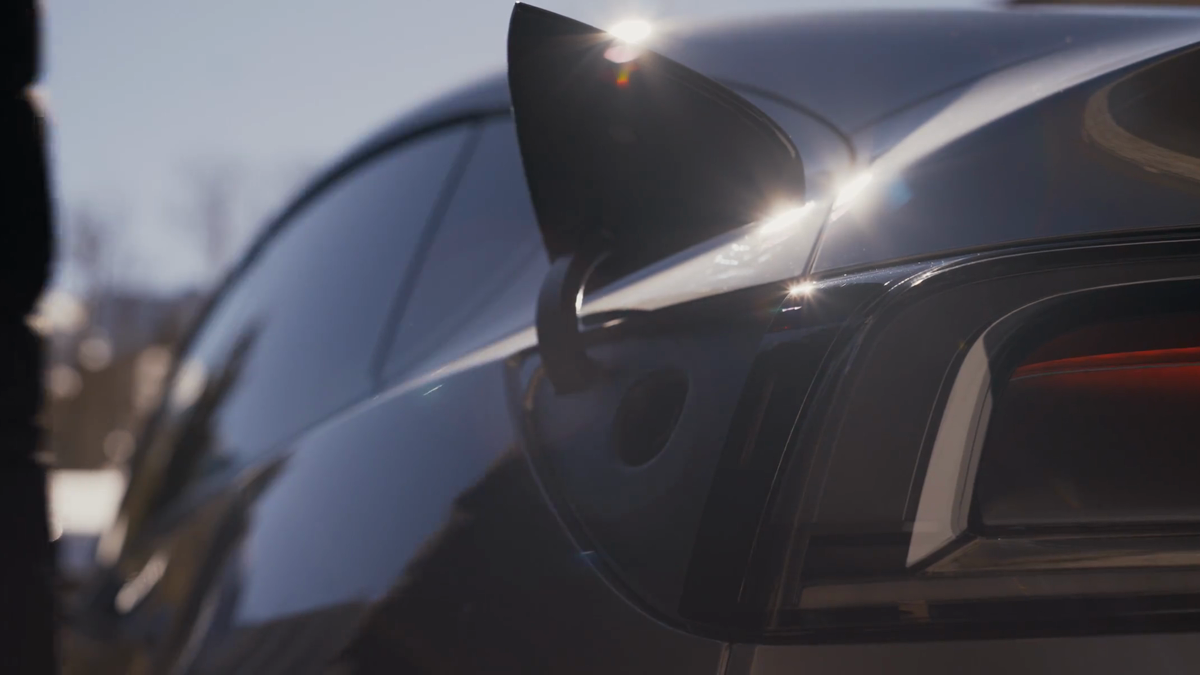
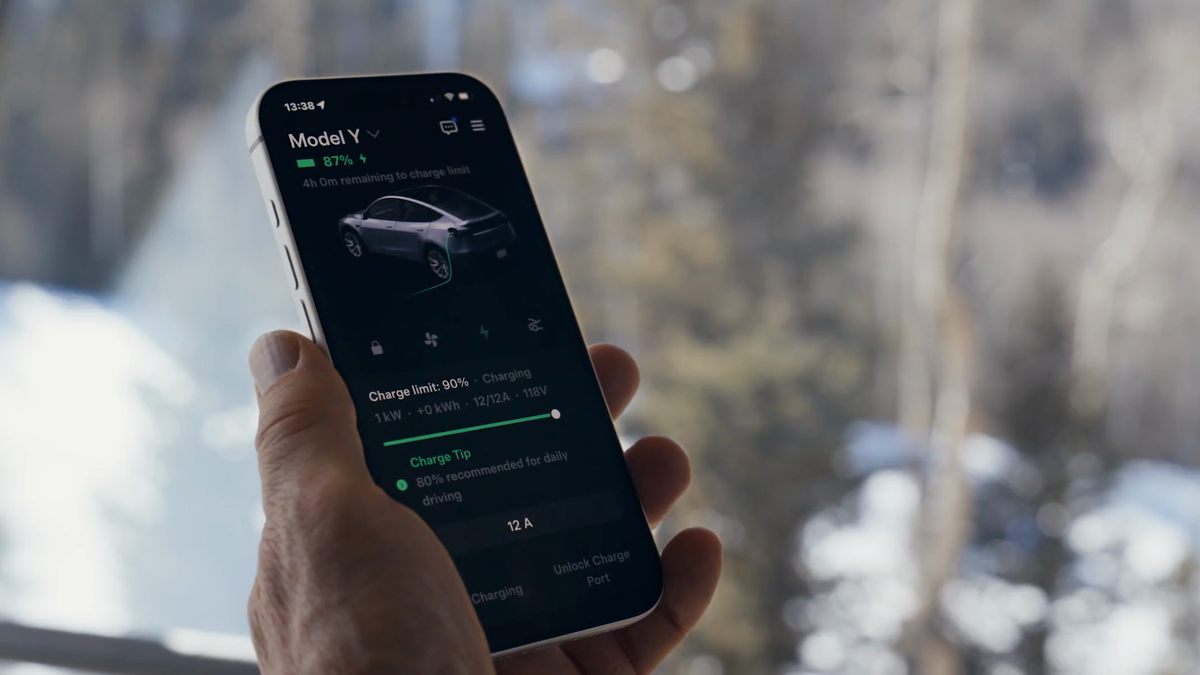
- Tesla — Convenience Features — official source page for the two illustrative charging video frames.
Reporting note: Tesla's indexed support documentation was readable during this run; direct Jina mirroring returned an access-denied page. Claims are limited to the official support text and do not promise repair timing, refunds or emergency response.
Update & Correction Log
October 19, 2026: Initial dated Owner Brief. The article distinguishes issue reporting from surveys and adds explicit emergency, privacy and damaged-equipment boundaries.


Laisser un commentaire
Ce site est protégé par hCaptcha, et la Politique de confidentialité et les Conditions de service de hCaptcha s’appliquent.