
Owner Explainer: How Tesla Wall Connector Scheduling and Access Controls Work
Owner Explainer · Current Tesla Guidance
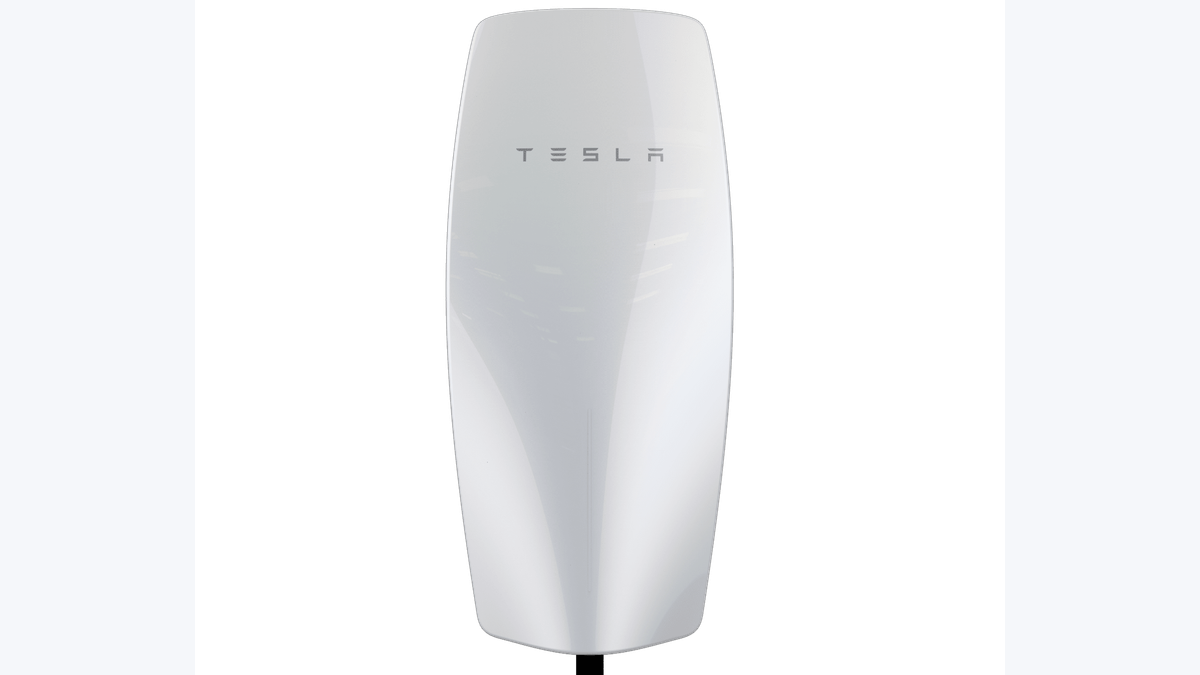
A registered Tesla Wall Connector can appear in the Tesla app with a charging schedule, real-time status and up to 12 months of charging history. Keep the unit on compatible 2.4 GHz Wi-Fi for updates, check that vehicle and Wall Connector schedules do not conflict, and use access controls only after confirming who should be allowed to charge.
30-Second Brief
- This is a dated owner explainer published August 23, 2026 in America/Los_Angeles. It summarizes current Tesla support guidance and does not claim a new Wall Connector hardware launch.
- Tesla says registration and home Wi-Fi are required to complete app setup and keep the Wall Connector connected for current features and software.
- The Tesla app can manage a charging schedule, show real-time status and display 12 months of charging history.
- Tesla's setup guidance lists All Vehicles, Only Tesla and Authorized Tesla Only access choices; the vehicle-restriction function applies to Tesla vehicles.
- Installation, breaker sizing, output amperage and commissioning are electrical work. Use Tesla's current installation manual and qualified local professionals.
What Happened
Tesla's current Wall Connector support pages describe the unit as both charging hardware and a connected device. After commissioning and registration, the owner can use the Tesla app to view status, set a charging schedule, review history and access troubleshooting tools.
The practical owner issue is configuration overlap. Wall Connector can hold a schedule, and the vehicle may hold a separate schedule. If the two windows do not overlap, a plugged-in car may not request energy even when the Wall Connector itself is online.
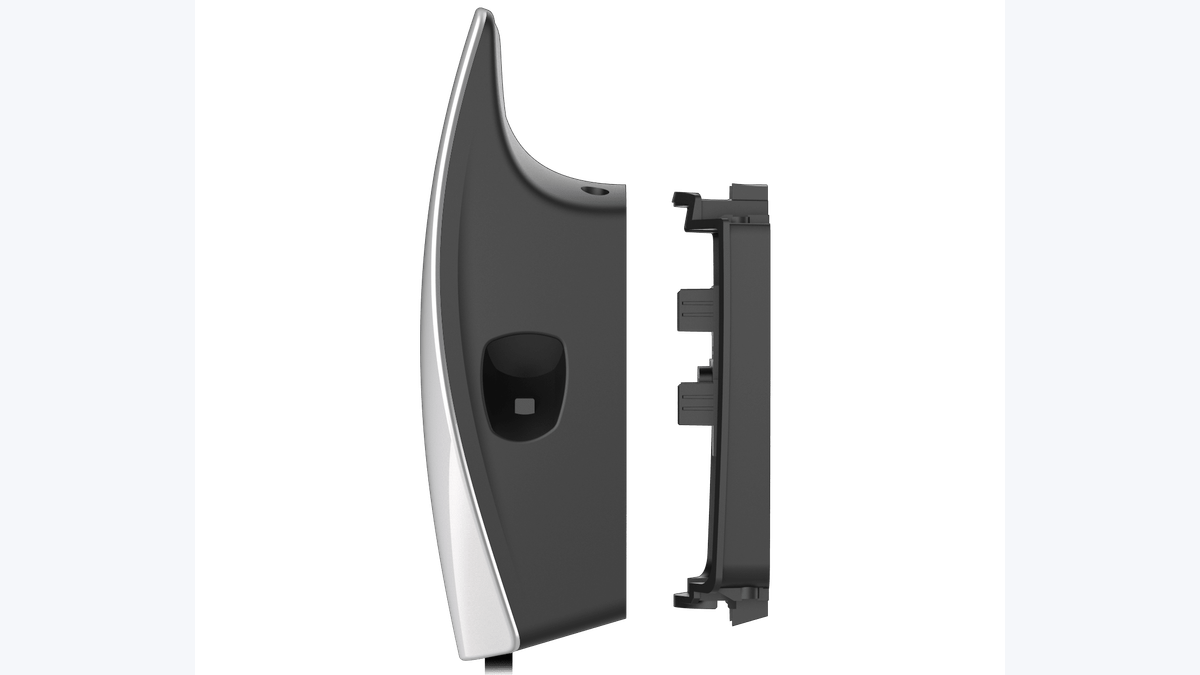
What Is Confirmed
- Registration links the product to the account: Tesla directs owners to add the product, scan the Quickstart Guide QR code, join the Wall Connector network and connect it to home Wi-Fi.
- The app supports scheduling: owners can set a custom schedule or use an off-peak schedule and can start charging to override the Wall Connector schedule.
- Charging history is retained in the app: Tesla says the app can show 12 months of sessions, including duration and delivered kilowatt-hours.
- Wi-Fi has stated requirements: current guidance specifies a compatible 2.4 GHz password-protected network and describes automatic firmware delivery over Wi-Fi.
- Access choices exist: the installation workflow lists All Vehicles, Only Tesla, Authorized Tesla Only and Compatibility Mode. VIN-based authorization applies to selected Tesla vehicles.
- Status lights are diagnostic: Tesla documents green, blue and other light-bar states, including cases where a vehicle is connected but charging is blocked by a schedule or configuration.
What Remains Unconfirmed
These support pages do not establish that every Wall Connector generation, market or plug type exposes the same app screens or access-control behavior. Firmware, Tesla app interfaces and regional product versions can change. Owners should use the product number, current manual and in-app guidance for their exact unit.
The pages also do not guarantee one charging speed for every vehicle or installation. Breaker size, circuit capacity, vehicle onboard-charger limits, local code, power management and temperature can all affect the result. A schedule explains timing, not the electrical capacity of the circuit.
Why It Matters
Home charging works best when it is predictable. Registration keeps the owner connected to device data, Wi-Fi enables updates, and charging history provides a concrete record of sessions and energy delivered. Together, those signals make it easier to distinguish a schedule conflict from a connectivity or electrical issue.
Access control matters in shared driveways, apartments and hospitality settings. The correct choice depends on whether the owner wants any compatible EV, any Tesla or only selected Tesla VINs to use the unit.
What Tesla Owners Should Know
- Save the Quickstart Guide. Its QR code carries the credentials used during commissioning and registration.
- Confirm the account email. Tesla says the customer email entered during registration links Wall Connector to the Tesla Account.
- Use compatible Wi-Fi. Check 2.4 GHz availability, WPA2-compatible security, signal strength and guest-network or firewall restrictions.
- Review both schedules. Make sure the vehicle and Wall Connector permit charging during the same period.
- Check the session history. Duration and delivered kWh can confirm whether charging started and how much energy moved.
- Choose access deliberately. Use All Vehicles for broad access, or the Tesla-specific choices when restriction is actually needed.
- Read the light bar. Solid or pulsing blue can mean the vehicle is connected but has not requested energy or is blocked by settings.
- Escalate electrical work. Do not change breaker rating, wiring or output configuration without the current manual and a qualified installer.
Tesstudio Analysis
Tesstudio scores this owner explainer at 72.5. Every operational claim comes from current, readable Tesla primary documentation, and both visuals are official Tesla product images. The score remains below the normal fact-news threshold because there is no same-window hardware announcement; it qualifies under the mandatory fallback policy as a current, high-value owner explainer.
The best diagnostic order is schedule, registration, Wi-Fi, light bar, then installer or support escalation. That sequence checks the reversible software and account causes before treating the issue as an electrical fault.
Sources & Reporting Notes
- Tesla Support: Wall Connector — primary source for connected features, access-control scope, Wi-Fi updates and charging capabilities.
- Tesla Support: Tesla App for Wall Connector — primary source for registration, scheduling, 12-month charging history and Wi-Fi troubleshooting.
- Tesla Support: Installing a Wall Connector — primary source for commissioning, access choices, 2.4 GHz Wi-Fi and both article images.
- Tesla Support: Troubleshooting a Wall Connector — primary source for light-bar states, schedule conflicts and support escalation.
Reporting note: This fallback owner explainer was published on August 23, 2026 in America/Los_Angeles after more than five hours without a publication and with the daily count below four. It does not say the underlying guidance or hardware was announced today. Tesla direct requests returned access restrictions during this run; the same official pages were independently readable through current search indexing, and the official image assets returned HTTP 200.
Update & Correction Log
August 23, 2026: Initial publication. The article separates account and scheduling controls from electrical installation and avoids promising one speed or feature set for every unit.



Leave a comment
This site is protected by hCaptcha and the hCaptcha Privacy Policy and Terms of Service apply.