
Owner Explainer: How Tesla Dashcam and Sentry Mode Save Video Clips
Owner Explainer · Current Tesla Guidance
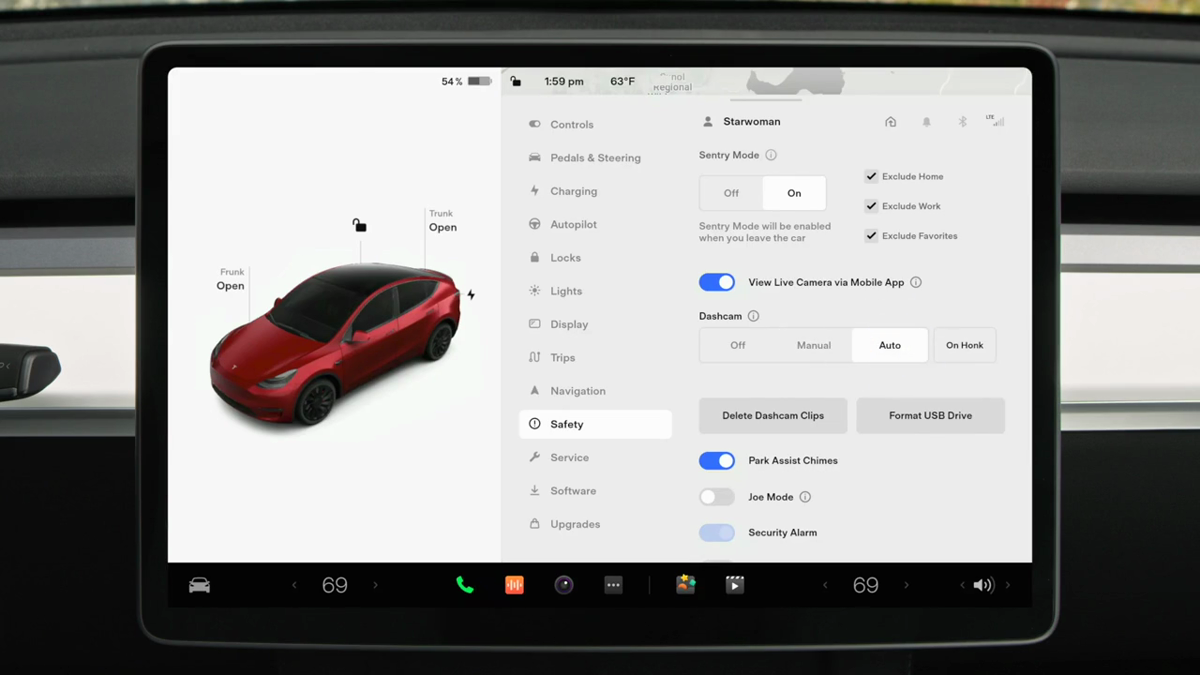
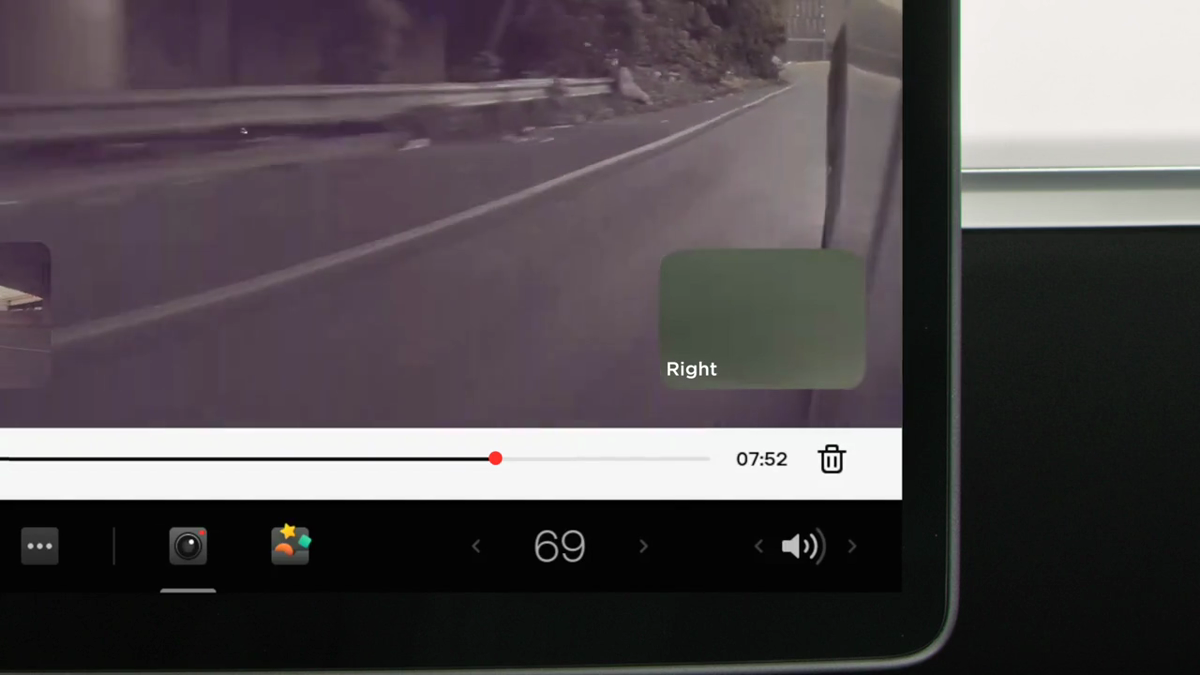
Tesla Dashcam continuously cycles recent footage while driving, but owners must save the clip they want to keep. Manual and On Honk saving preserve the most recent 10 minutes; recordings stay on a properly formatted USB drive in the TeslaCam folder. Open the Viewer only after parking, and remember that viewing pauses recording.
30-Second Brief
- This is a dated owner explainer published August 22, 2026 in America/Los_Angeles. It summarizes current Tesla documentation rather than presenting Dashcam or Sentry Mode as a new feature.
- Dashcam supports Auto, Manual and On Honk behavior, subject to vehicle, region and software availability.
- Manual and On Honk saving preserve the most recent ten minutes of footage according to Tesla's current Model Y manual.
- A properly formatted USB drive and TeslaCam folder are required for locally stored recordings; some vehicles use the glovebox data port.
- When storage becomes limited, old Sentry clips can be deleted to make room, and opening the touchscreen Viewer pauses Dashcam recording.
What Happened
Owner questions often begin after an incident: was the video saved, where is it stored, and can a clip still be recovered? Tesla's current manuals distinguish footage that is merely circulating from footage that has been explicitly saved.
The practical workflow is to verify the USB drive before a trip, know which save mode is selected, deliberately save an important event, and copy valuable footage off the drive before storage pressure or normal cycling removes it.
What Is Confirmed
- Dashcam records while driving: Tesla describes it as video recording of the vehicle's surroundings for driving incidents and notable events.
- Manual and On Honk preserve ten minutes: either action saves the most recent ten minutes when the option is available and enabled.
- Local storage is required: recordings are written to a properly configured USB drive and are not automatically sent to Tesla.
- Folder roles differ: RecentClips holds circulating recent footage, SavedClips holds saved recordings, and SentryClips holds security-event recordings.
- The Viewer has a tradeoff: Tesla says Dashcam recording pauses when the touchscreen Viewer is launched.
- Sentry Mode has limits: it requires Dashcam to be enabled for video storage, can use additional energy and cannot prevent or capture every threat.
What Remains Unconfirmed
Tesla does not guarantee that Auto mode will identify every incident or that Sentry Mode will record every suspicious action. Detection varies with the event, vehicle power and sleep state, available hardware, settings, software version and local rules.
A missing clip is not proof that the cameras failed. The footage may never have been saved, may have been overwritten, or may be on a different drive or folder. Owners should preserve the original drive before troubleshooting material connected to a collision, insurance claim or legal matter.
Why It Matters
The difference between circulating and saved footage can determine whether video still exists when an owner needs it. Learning the save action before an incident is more reliable than trying to reconstruct the workflow afterward.
Privacy and evidence handling matter too. Camera use is subject to local law and property restrictions. If footage could support an insurance or legal claim, keep an untouched copy, note the time and location, and avoid editing the only original.
What Tesla Owners Should Know
- Confirm the data port. Tesla notes that some center-console USB ports are charging-only; use the glovebox USB port where fitted.
- Check the drive. Ensure the vehicle recognizes the USB drive and displays the Dashcam controls before relying on it.
- Choose a save mode. Review Auto, Manual and On Honk under Controls > Safety > Dashcam.
- Save immediately after an event. Tap the Dashcam icon when safe, or use On Honk if that behavior is already enabled.
- Park before reviewing. Open the Viewer only in Park; viewing pauses Dashcam recording.
- Export important clips. Copy them to another device, preserving the original files and timestamps.
- Manage capacity. Inspect free space periodically because old footage can be overwritten or deleted.
- Respect local rules. Camera and audio restrictions vary; Tesla's Dashcam video is visual-only and Sentry Live Camera does not capture audio.
Tesstudio Analysis
Tesstudio scores this owner explainer at 72.0. Every operational claim is based on readable Tesla primary documentation and an official Tesla video. The score remains below the normal news threshold because no same-window product announcement occurred; the article qualifies under the mandatory fallback policy as a current, high-value owner explainer.
The single best habit is to treat the USB drive like any other recording medium: test it before it matters, save deliberately, and export anything important. Dashcam is useful evidence support, not an infallible event recorder.
Sources & Reporting Notes
- Tesla Model Y Owner's Manual: Dashcam — primary source for Auto, Manual, On Honk and ten-minute saving behavior.
- Tesla Model Y Owner's Manual: USB Drive Requirements and Viewing Recordings — primary source for drive setup, folders, storage cycling and Viewer behavior.
- Tesla Model Y Owner's Manual: Sentry Mode — primary source for detection, energy, alerts and limitations.
- Tesla Vehicle Safety and Security Features — current support overview and privacy notes.
- Tesla Dashcam video guide — official demonstration and source of both article images.
Reporting note: This fallback owner explainer was published on August 22, 2026 in America/Los_Angeles after more than five hours without a publication and with the daily count below four. It does not say that the underlying guidance was newly announced today. Feature availability and menus can vary by model, market, hardware and software.
Update & Correction Log
August 22, 2026: Initial publication. The article separates circulating footage from explicitly saved clips and labels the limits of Auto and Sentry detection.



Leave a comment
This site is protected by hCaptcha and the hCaptcha Privacy Policy and Terms of Service apply.