
Owner Explainer: What Tesla Charge Port Light Colors Mean
Owner Explainer · Current Tesla Primary Guidance
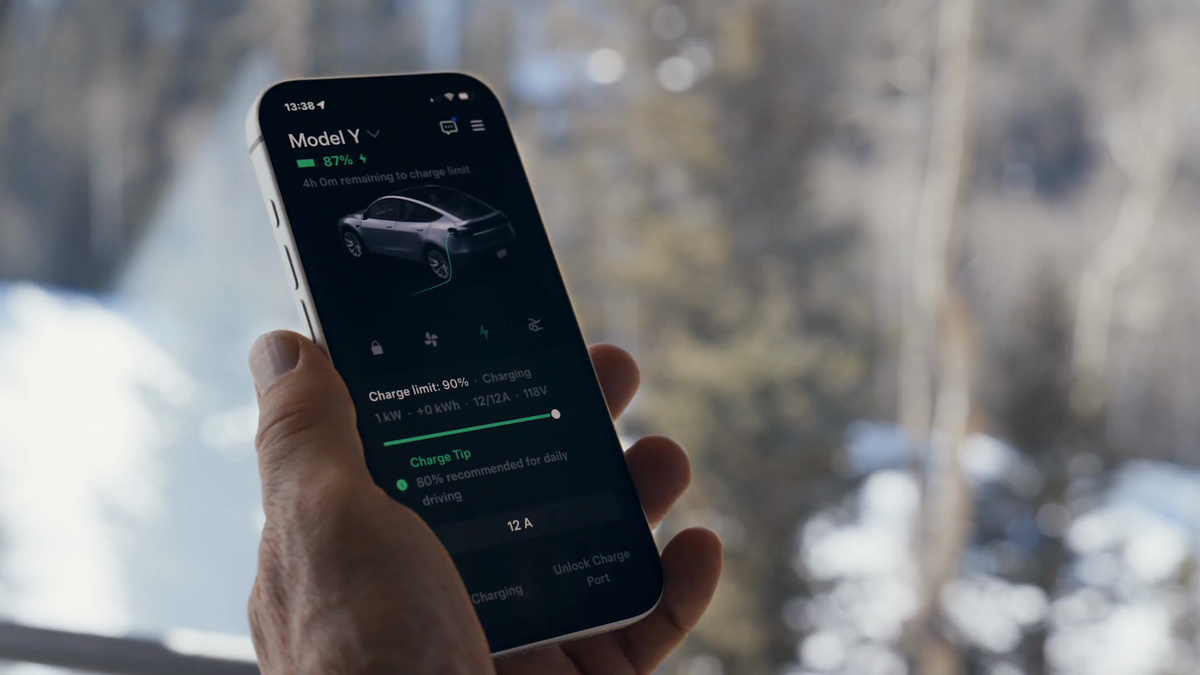
Tesla charge port light colors communicate session state: blinking blue means the car and charger are communicating, blinking green means charging, solid green means complete, amber points to an insertion or reduced-current problem, and red means a charging fault. Read the touchscreen alert and use the manual matched to your model before troubleshooting.
30-Second Brief
- This November 11, 2026 Owner Explainer summarizes current Tesla documentation; it is not a claim that Tesla changed the light meanings today.
- White or light blue means the charge port is open and ready, or the latch is unlocked for removal.
- Blinking blue means the vehicle is communicating with the charger; solid blue commonly means a future scheduled charging session.
- Blinking green means charging is in progress, while solid green means charging is complete.
- Solid amber means the connector is not fully inserted. Blinking amber means reduced AC charging current on the cited Model 3 and Model Y documentation.
- Red means a fault stopped or prevented charging; check the touchscreen alert and do not use visibly damaged equipment.
What Happened
Tesla's current owner and DIY pages use the charge-port light as a compact diagnostic. The same color can change meaning depending on whether it is solid or blinking, so “blue,” “green” or “amber” alone is not enough to interpret a session.
The model boundary matters. Model 3 and Model Y pages describe a broadly similar sequence. Cybertruck adds a vehicle-to-home distinction: blinking green can also indicate energy leaving the high-voltage battery for Powershare in supported North American use.
What Is Confirmed
- White or light blue: the port is open and ready, or the latch is unlocked and the connector can be removed.
- Blinking blue: the vehicle is communicating with the charging station before charging begins.
- Solid blue: the connector is detected but charging is not active, commonly because a scheduled session will begin later.
- Blinking green: charging is in progress and the pulse slows as the battery approaches the charge limit.
- Solid green: charging is complete.
- Solid amber: the connector is not fully inserted; realign it and insert it fully if safe.
- Blinking amber: the cited Model 3 and Model Y pages say AC charging continues at reduced current because the connector is not fully inserted.
- Red: a fault has stopped or prevented charging; Tesla directs owners to the touchscreen alert and, where safe, another cable or charger.
What Remains Unconfirmed
A light color alone does not diagnose the underlying fault. The cause can be the connector, cable, charging source, power outage, outlet, Wall Connector, station, vehicle or another condition. This article does not authorize electrical repair or high-voltage work.
Exact light behavior can vary by model, market, date of manufacture, charging hardware and vehicle function. Cybertruck's blinking-green Powershare state is not a universal Model 3 or Model Y meaning. Owners should use the live in-car manual and alert text for the exact vehicle.
Why It Matters
A charging session can look connected without actually delivering energy. The difference between blinking blue, solid blue and blinking green tells an owner whether the system is still negotiating, waiting for a schedule or actively charging.
Amber and red states also deserve different responses. Amber usually calls for a careful connector check; red calls for the specific alert and a safer alternative. Treating both as “try harder” can damage equipment or expose the owner to a hazard.
What Tesla Owners Should Know
- Watch the full pattern. Note the color and whether it is solid or blinking.
- Confirm on the screen or app. Check that charging power, time remaining or a scheduled start is actually displayed.
- For solid blue, check the schedule. Start charging manually only if an immediate session is intended.
- For amber, stop and reseat safely. Remove and realign the connector; inspect for ordinary obstructions without touching damaged conductors.
- For red, read the alert first. Follow the vehicle message and try another safe cable or charging source only when appropriate.
- Keep clear of damage. Never handle visibly damaged charging equipment, exposed conductors, smoke, heat or water intrusion; use emergency or site support when needed.
- Use the matched manual. Model, market and hardware differences can change the available status states and troubleshooting steps.
Tesstudio Analysis
Tesstudio scores this current Owner Explainer at 73.4. Source authority and owner usefulness are high because the meanings and first actions come from live Tesla primary pages. Timeliness and event magnitude are lower because this is standing guidance rather than a same-window feature announcement.
The useful decision tree is short: blue asks whether the session is communicating or scheduled, green confirms progress or completion, amber asks for a safe fit check, and red asks for the exact fault message. That is more reliable than guessing from one color name.
Sources & Reporting Notes
- Tesla Model Y DIY: Charge Port Status Lights — primary source for the color table and owner actions.
- Tesla Model 3 Owner's Manual: Charging Instructions — primary source for charging confirmation, light states and alert guidance.
- Tesla Cybertruck DIY: Charge Port Status Lights — primary source for Cybertruck-specific light meanings and the Powershare distinction.
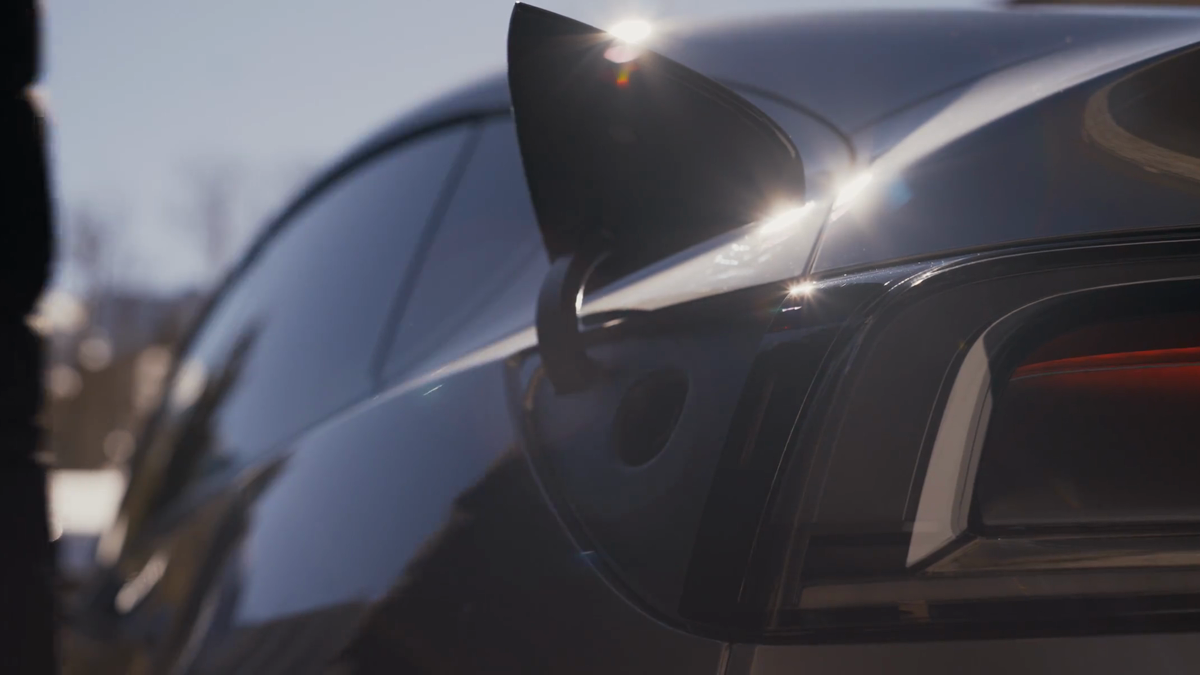
- Tesla: Convenience Features — official source page for the two illustrative charging video frames and source video.
Reporting note: The three Tesla manuals were checked through direct lightweight retrieval or current web indexing before publication. The two visuals are existing provenance-tracked frames from an official Tesla video and are explicitly illustrative. Community posts were discovery-only and are not evidence. X was not called because actual billing could not be verified.
Update & Correction Log
November 11, 2026 in America/Los_Angeles: Initial fallback publication. The article separates color from blink pattern, preserves model-specific differences and adds damaged-equipment and electrical-work boundaries.



コメントを書く
このサイトはhCaptchaによって保護されており、hCaptchaプライバシーポリシーおよび利用規約が適用されます。