
Owner Explainer: How Tesla Software Updates Use Wi-Fi, Parking and Charging
Owner Explainer · Official Tesla Documentation
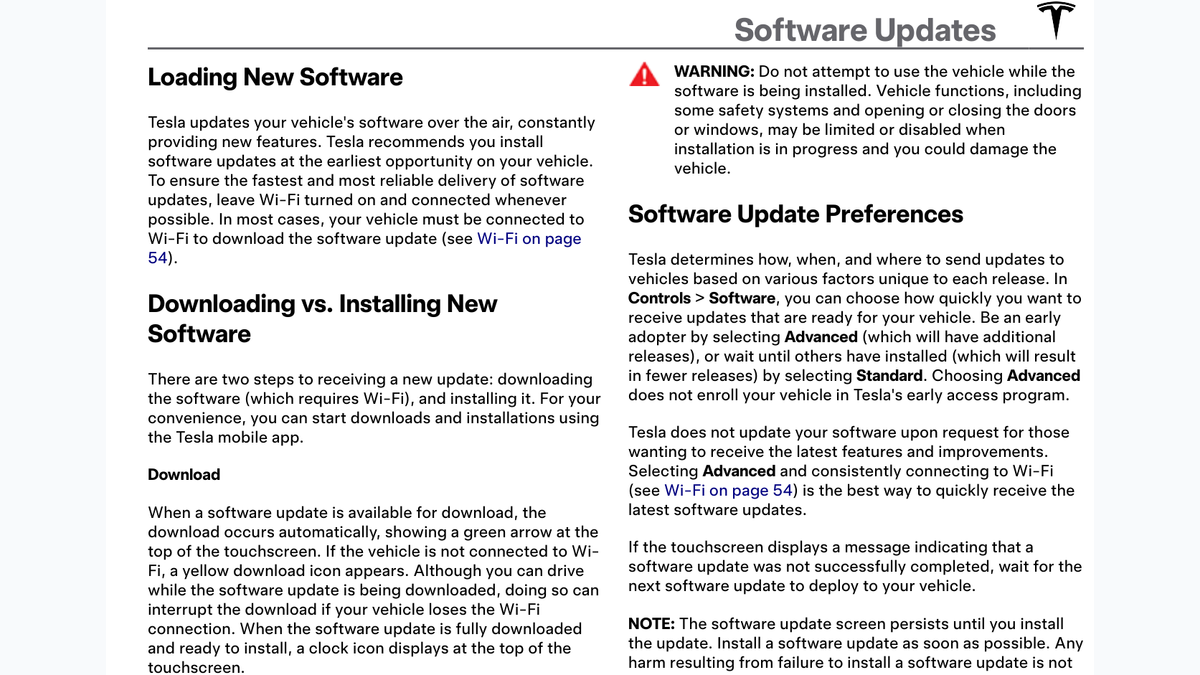
A Tesla software update has two different phases. The software download normally needs stable Wi-Fi, but you may drive while it downloads. The update installation requires the vehicle to remain parked, and you cannot drive it. If the car is plugged in, Tesla charging pauses during installation and resumes afterward.
30-Second Brief
- This is a dated owner explainer based on Tesla’s current support page and a Model 3 Owner’s Manual PDF modified June 30, 2026; it is not a claim that Tesla released a new vehicle update today.
- Tesla separates downloading from installing. Most downloads need Wi-Fi; installation requires Park.
- You can drive during the download phase, although leaving Wi-Fi can interrupt it. You cannot drive during installation.
- If an update installs while the vehicle is plugged in, charging pauses and resumes automatically after completion.
- Choosing Advanced may expose the car to additional releases, but Tesla says it is not an early-access-program enrollment and does not guarantee immediate delivery.
What Happened
Tesla’s support material answers a recurring owner question: why an available update may show a yellow download icon, why a car can move during one stage but not the next, and why charging temporarily stops when installation begins.
The important distinction is procedural rather than version-specific. Downloading transfers the software package and usually depends on Wi-Fi. Installation applies the downloaded package to the vehicle and temporarily restricts vehicle use.
What Is Confirmed
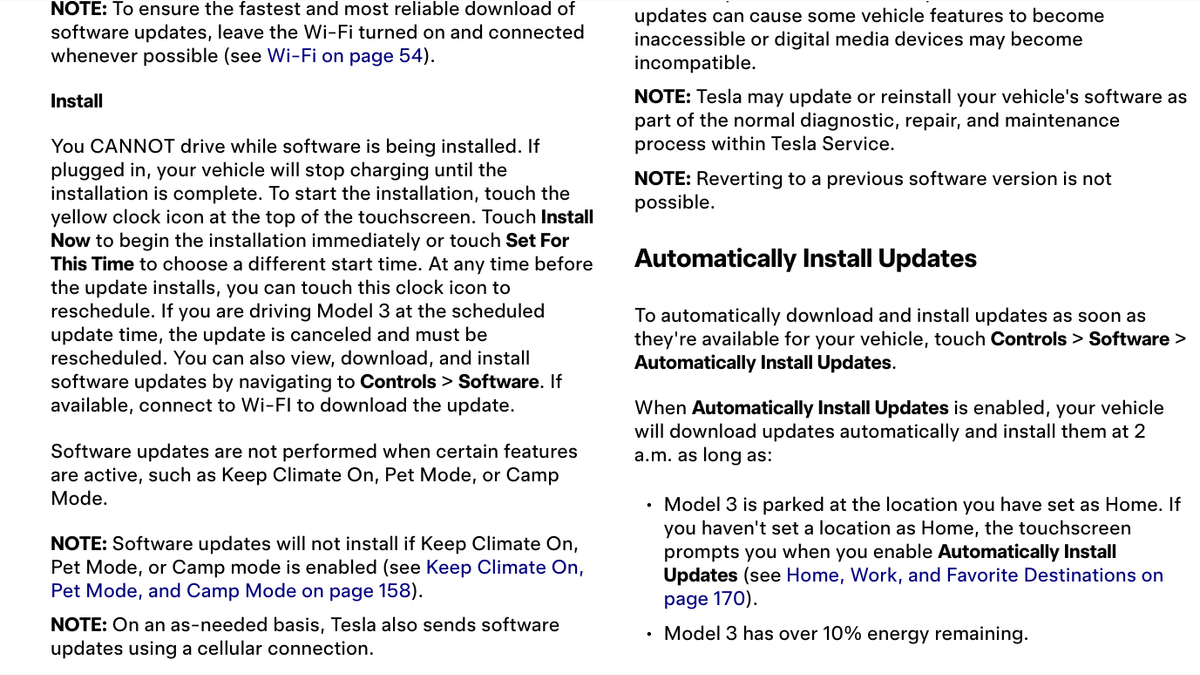
- Wi-Fi: Tesla recommends leaving Wi-Fi on and connected; in most cases it is required to download an update.
- Download phase: Driving is possible, but the download can be interrupted if Wi-Fi disconnects.
- Install phase: The vehicle must remain parked and cannot be driven while software is being installed.
- Charging behavior: Charging stops during installation and resumes automatically when installation finishes.
- Release timing: Tesla controls how, when and where updates are sent based on factors unique to each release.
- Advanced preference: Advanced can make additional releases available but does not enroll the vehicle in Tesla’s early access program.
- Release notes: Owners can read the current notes under Controls > Software > Release Notes.
What Remains Unconfirmed
Tesla does not promise an exact delivery time for an individual VIN. Two vehicles on different models, configurations, regions or software branches can receive different timing or feature sets. Selecting Advanced does not override Tesla’s staged deployment decisions.
The documentation also does not establish one universal installation duration. Tesla says some updates can take several hours, while its Model 3 manual notes that some updates take around 30 minutes and others may take longer. The in-car estimate is the better guide for a specific update.
Why It Matters
Confusing download with installation can create avoidable friction. An owner may see an update ready to download but lack Wi-Fi, or schedule installation while expecting to drive or charge. Understanding the two phases makes it easier to choose a time when the car can remain parked and temporarily unavailable.
It also prevents a common over-reading of the Advanced setting. The setting changes preference, not entitlement: Tesla still stages releases and feature availability varies by model, configuration, market and firmware.
What Tesla Owners Should Know
- Check the icon. A yellow download icon indicates that an update is available but Wi-Fi is not connected; a green arrow indicates downloading.
- Use stable Wi-Fi. Tesla’s support page recommends at least three bars for a reliable download.
- Schedule around driving. Start installation only when the vehicle can remain parked for the estimated duration.
- Expect charging to pause. Plugging in is fine, but charging stops during installation and should resume automatically afterward.
- Turn off blocking modes. Tesla’s manuals say software will not install while Keep Climate On, Dog/Pet Mode or Camp Mode is active.
- Read the release notes. Review them after installation because they can contain feature changes, safety information or operating instructions.
- Use service for a stuck update. Tesla Support says to confirm Wi-Fi first, then schedule service if the update still makes no progress.
Tesstudio Analysis
The safest owner habit is simple: connect to reliable Wi-Fi before the download, then install only when the car can stay parked and temporarily stop charging. That sequence follows Tesla’s documentation and avoids guessing about the update state.
Owners should also treat release notes as part of the update rather than optional marketing copy. Tesla’s own manual says they may include important safety information or operating instructions, and a feature described online may still vary by vehicle configuration or region.
Related Tesla News Resources
Follow the Tesstudio Tesla News hub for verified Tesla software and owner updates. No Related Gear placement is included because accessories are not required to complete an official vehicle software update.
Sources & Reporting Notes
- Tesla Support: Software Updates — download, installation, Wi-Fi, troubleshooting and charging guidance.
- Tesla Model 3 Owner’s Manual — official PDF modified June 30, 2026; Software Updates section on PDF pages 197–198.
- Tesla Model Y Owner’s Manual: Software Updates — model-specific corroboration for the same two-phase process.
- Tesla Model 3 Owner’s Manual: Feature Availability Statement — confirms that features vary by firmware, region, configuration and options.
Reporting note: All operational statements are attributed to Tesla’s current documentation. This explainer does not claim an August 20 software release, a universal installation duration or identical feature availability across vehicles.
Update & Correction Log
August 20, 2026: Initial Owner Explainer based on Tesla Support and Tesla owner-manual documentation. The article distinguishes download from installation and does not present the underlying documentation as a same-day announcement.



Hinterlasse einen Kommentar
Diese Website ist durch hCaptcha geschützt und es gelten die allgemeinen Geschäftsbedingungen und Datenschutzbestimmungen von hCaptcha.