
Owner Explainer: Tesla Driver Profiles, Key Linking and Easy Entry
Owner Explainer · Current Tesla Primary Documentation
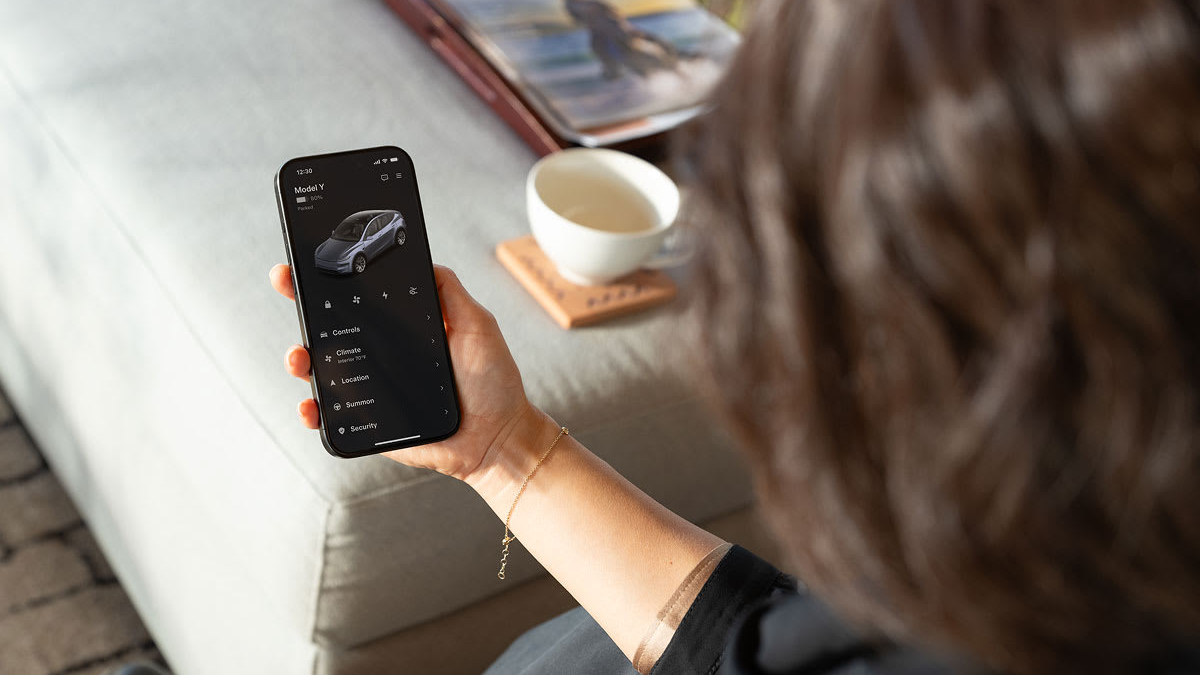
Set up Tesla driver profiles after granting the correct person access in the Tesla app. Save seat, mirror and preferred settings, then link the profile to a phone key or key card. Use Easy Entry only after checking rear-seat clearance. A synced profile remembers preferences; it does not replace driver permissions, account security or key management.
30-Second Brief
- This November 2 Owner Explainer summarizes current Tesla documentation; it is not a new feature announcement.
- Tesla Profiles can sync supported preferences such as seat positions, climate, navigation and media settings across supported vehicles.
- Additional drivers first need vehicle access through the Tesla app before their Tesla Profile appears in the car.
- Model 3 and Model Y manuals say the vehicles support up to 10 driver profiles.
- Multiple keys can link to one profile, but one key cannot link to multiple profiles.
- Easy Entry moves the seat and steering wheel for entry and exit; Tesla publishes a child-seat clearance warning.
What Happened
Tesla's current Model 3 and Model Y manuals divide this workflow into three layers: app-based driver access, a profile that saves preferences, and a physical or phone key that can select the correct profile. Owners often treat these as one setting, but removing one layer can have a different effect from deleting another.
This explainer enters Tesstudio's mandatory fallback ladder after more than five hours without a publication and with the current Los Angeles daily count below four. It is current owner guidance, not breaking news.
What Is Confirmed
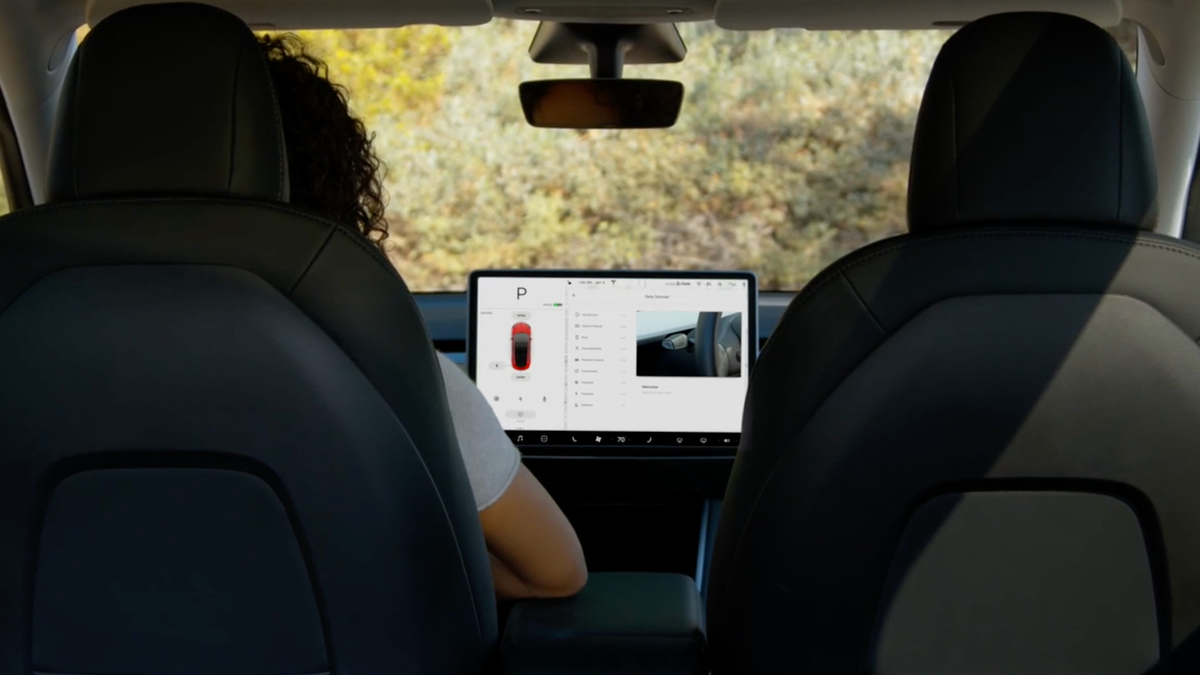
- Adding a profile: Tesla says owners can use Controls > Profiles > Add New Driver and choose an app-linked or local profile.
- Synced preferences: Supported Tesla Profiles can carry seat, climate, navigation, media and data-sharing preferences across supported vehicles.
- Access link: Sharing the vehicle through Security & Drivers > Manage Drivers > Add Driver allows the invited person's Tesla Profile to appear after acceptance.
- Removal: Removing a person's vehicle access also removes that person's Tesla Profile from the vehicle.
- Key linking: Owners can link the active profile under Controls > Locks > Keys. Multiple keys can point to one profile, but one key cannot point to multiple profiles.
- Capacity: The cited current Model 3 and Model Y manuals state a maximum of 10 driver profiles.
- Easy Entry: When enabled, the seat and steering wheel adjust in Park for exit and return to the selected profile after the driver presses the brake.
What Remains Unconfirmed
Tesla does not say that every setting syncs between every model. The manuals explicitly note that some settings sync only between similar vehicle models, and they provide a calibration path when seat, steering or mirror positions do not restore as expected.
The workflow can vary by model, market, configuration and software version. This article uses current U.S. Model 3 and Model Y documentation and does not claim identical behavior for Model S, Model X or Cybertruck.
Why It Matters
A profile mismatch can look like a hardware problem when it is actually an access or key-selection issue. Separating the layers makes troubleshooting safer: confirm the invited driver, confirm the active profile, then confirm which key is linked.
The Easy Entry warning is the highest-value boundary. A convenience movement can reduce space behind the driver seat. Owners should verify clearance whenever a rear child safety seat is installed instead of assuming a saved position is harmless.
What Tesla Owners Should Know
- Grant access first. Invite the person through Security & Drivers in the Tesla app; do not share the owner's account password.
- Create or select the profile. Save the seat, mirrors and steering position after the driver is seated correctly.
- Link the intended key. Use Controls > Locks > Keys while the desired profile is active.
- Test the handoff. Lock the vehicle, approach with the linked key and confirm the expected profile loads.
- Check Easy Entry clearance. Do not use a full-rearward Easy Entry position when a child safety seat is directly behind the driver.
- Calibrate if needed. Tesla directs owners to Controls > Service > Driver Seat, Steering, & Mirrors Calibration when restoration is inaccurate.
- Remove access when appropriate. Deleting a local profile and revoking vehicle access are different actions; use the one that matches the security goal.
Tesstudio Analysis
Tesstudio scores this current owner explainer at 72.5. The instructions are directly verifiable across two current Tesla owner manuals and Tesla's support documentation, but there is no same-window product change. It qualifies only because mandatory fallback is active and the daily minimum is unmet.
The best mental model is access, preferences and key selection. Keeping those three layers separate prevents accidental over-sharing and makes profile troubleshooting faster. The evidence also supports a clear limit: not every setting syncs, and safety checks still belong to the driver.
Related Tesla News Resources
See Tesstudio's Phone Key and backup key-card explainer for key setup and fallback access. No Related Gear placement is included because this is an account and vehicle-settings workflow.
Sources & Reporting Notes
- Tesla Model 3 Owner's Manual: Driver Profiles — current U.S. primary documentation for profile setup, sync, key linking and Easy Entry.
- Tesla Model Y Owner's Manual: Driver Profiles — current U.S. primary documentation and child-seat warning.
- Tesla Support: How to Add or Remove Drivers — app invitation, permissions and removal workflow.
- Tesla App Support — mobile-access and app troubleshooting boundaries.
Reporting note: Every operational claim is limited to cited Tesla documentation. The article does not claim that profiles replace access permissions or that every preference syncs across every model. X was not used because actual billing could not be verified.
Update & Correction Log
November 2, 2026: Initial Owner Explainer, published in mandatory fallback mode after more than five no-publication hours with the Los Angeles daily count below four.



Hinterlasse einen Kommentar
Diese Website ist durch hCaptcha geschützt und es gelten die allgemeinen Geschäftsbedingungen und Datenschutzbestimmungen von hCaptcha.